Choose your setup path first, then move through the tutorial one step at a time. The guide begins with the shared setup and automatically branches into the path you selected after Step 4.
UE 5.5+UE 5.7 used in examplesThird Person TemplateCombat Variant
Note: Motion Matching is best used by taking the AAMS Motion Matching example as your base. The State Machine path is the better choice if you want to add AAMS into an existing traditional Animation Blueprint setup.
State Machine Setup
Choose how you want to use the State Machine version.
Path
Step 1 of 1
0% complete
1
Step Title
Step summary
Additional Setup and Reference
This section is not part of the numbered guided flow. Use it as supporting setup information after the integration steps.
Note: Most alignment issues with custom characters come from missing Motion Warping notifiers, incorrect notifier names, or Data Table offsets that were not adjusted for the size of the new character.
Animation Data Tables and Motion Warping reference
Animation Data Tables and Motion Warping
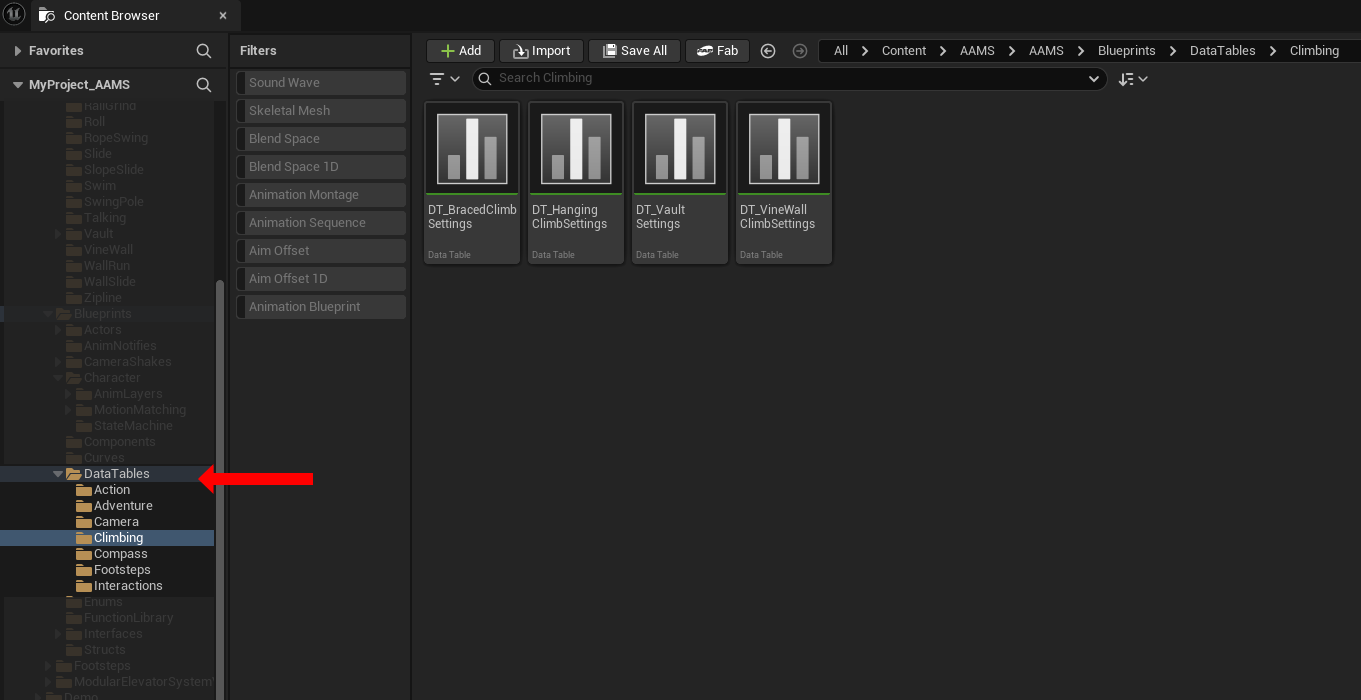
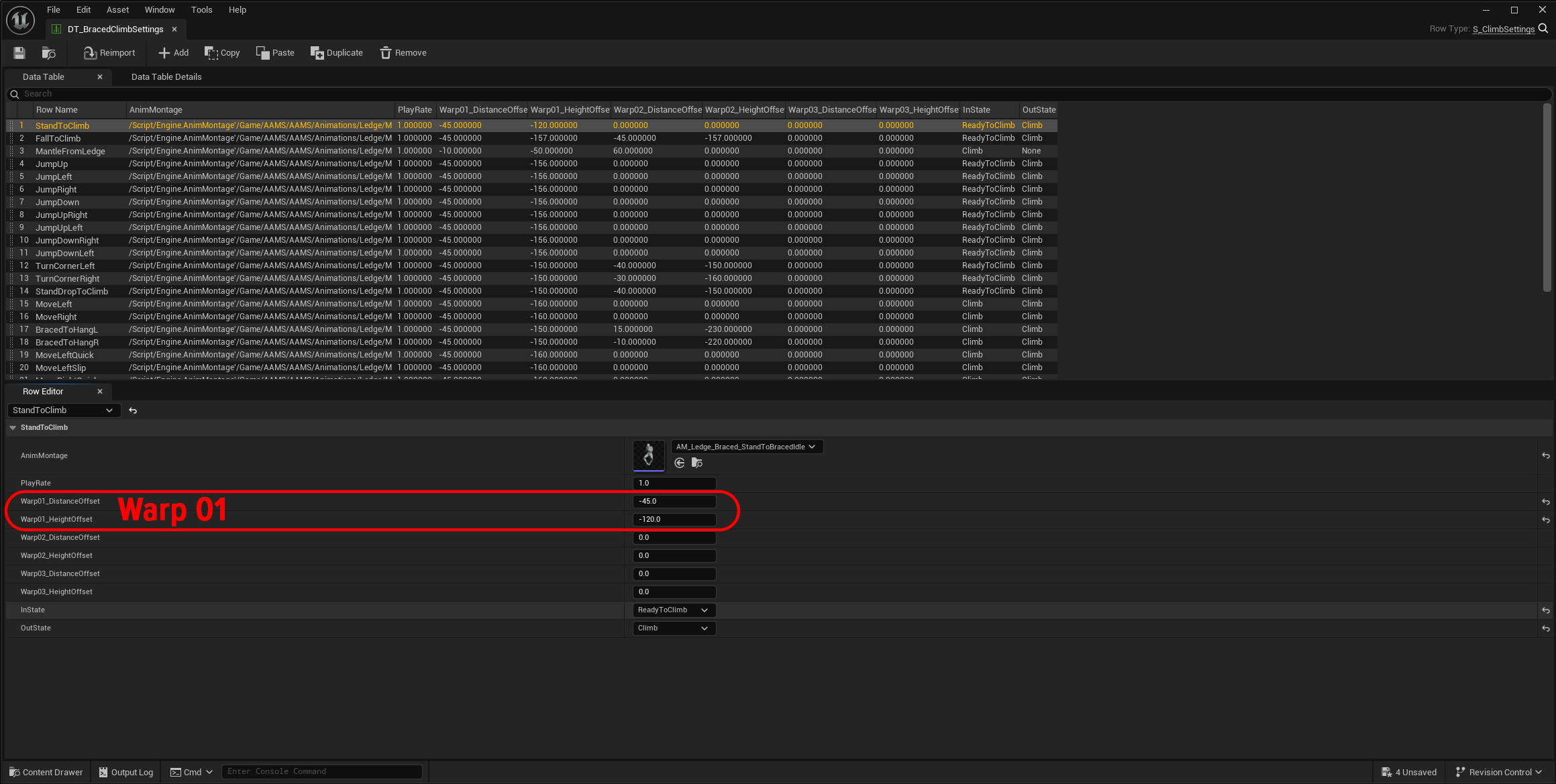
Most of the animation-related Data Tables in the DataTables folder include settings that control how the character lines up during movement mechanics. These tables often contain offset values that adjust the character’s location at specific points in the animation. If your character is smaller or larger than the AAMS example character, these values will often need to be adjusted.
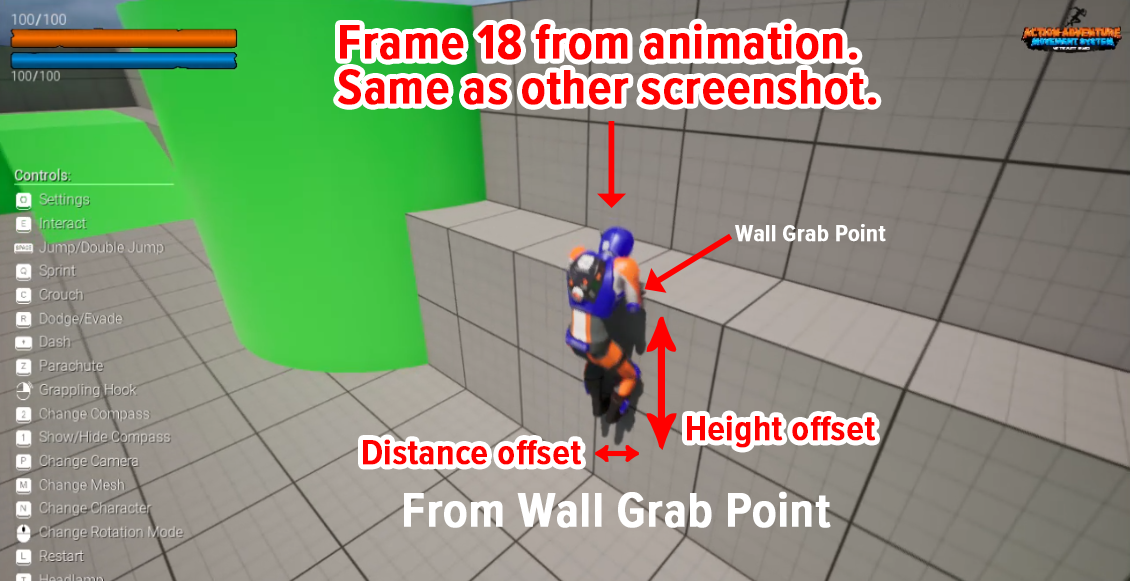
These offsets usually work by moving the character’s root bone relative to a contact point in the world. For example, during a vault or mantle, AAMS may use the top of the wall or ledge as the target point, then apply offset values so the hands, body, and final landing position line up correctly.
Animation Data Tables Height and Distance
How Motion Warping Works
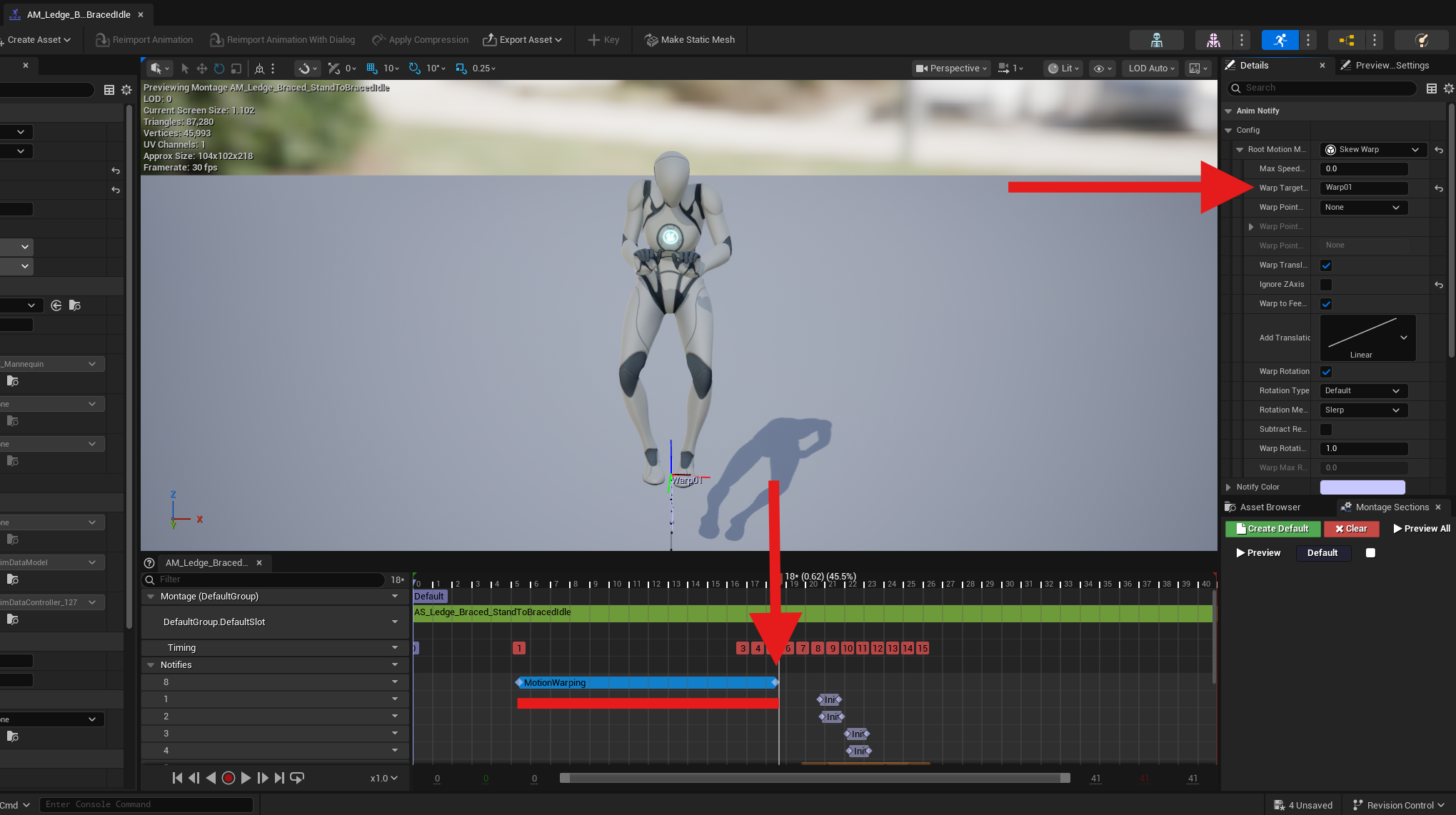
Many AAMS animations use Motion Warping to move the character from their current position to a target location during specific parts of the animation. For Motion Warping to work correctly in your own animations, those animations need to include the proper Motion Warping Anim Notifier States.
A good way to set this up is to open the AAMS version of the animation you are replacing, then copy its anim notifiers into your version and place them in the matching parts of the timeline. For example, if you are replacing the mantle montage, open AM_Braced_Mantle, copy the notifier states, and paste them into your own animation in the same general locations.
Motion Warping Notifier States
The Motion Warping Notifier State moves the character toward the target point by the time the notifier ends. In ledge-based mechanics, that target is usually the top of the ledge, plus or minus any offset values set in the associated Data Table row.
Example: Braced Mantle
Using Braced Mantle as an example, the montage contains two Motion Warping notifier states named Warp01 and Warp02.
If you open DT_BracedClimbSettings and locate the MantleFromLedge row, you will see the montage reference along with the offset values for Warp01 and Warp02. These offsets determine where the character should be positioned relative to the ledge by the end of each warp.
Same Animation in Level
If the character ends too low, increase the Height Offset
If the character ends too far away from the ledge, adjust the Distance Offset
If the character overshoots or stops too early, test and refine the offsets until the hands and body line up correctly
Shorter animations may only need a single Motion Warp. Longer animations with more movement, such as mantles, often need two or more warps. In a mantle, one warp may lift the character above the ledge, while the second moves them forward and aligns them with the ground.
Adjusting for Different Characters
When testing retargeted or replacement animations, always test them directly in a level and watch where the character lines up at the end of each Motion Warp section. Pay attention to whether the character needs to move up or down, forward or backward, or closer to or farther from the target surface.
If your character is smaller than the AAMS mannequin, you will usually need to lower the offsets. If your character is larger, you may need to increase them.
General Rule
Make sure the animation has the correct Motion Warping notifier states
Make sure the notifier names match the names used in the Data Table, such as Warp01 and Warp02
Test the mechanic in-game
Adjust the Data Table offsets until the animation lines up correctly
This setup is used across many of the action and traversal Data Tables, such as DT_BracedClimbSettings, DT_RailGrind, DT_Dodge, and others found in the DataTables folder.